
Table of Contents
Google Workspace MX Records Not Working?
Old vs New MX Records & How ManagedInbox Fixes Email Delivery
If emails are not reaching Gmail after setting up Google Workspace, the issue is often incorrect MX records or DNS changes made at the wrong place.
This is very common when businesses migrate from another email system to Google Workspace.
The Most Common DNS Mistake Businesses Make
Many users update DNS records:
- At the hosting provider, while
- The actual DNS is managed by the domain registrar
—or the other way around.
👉 When this happens:
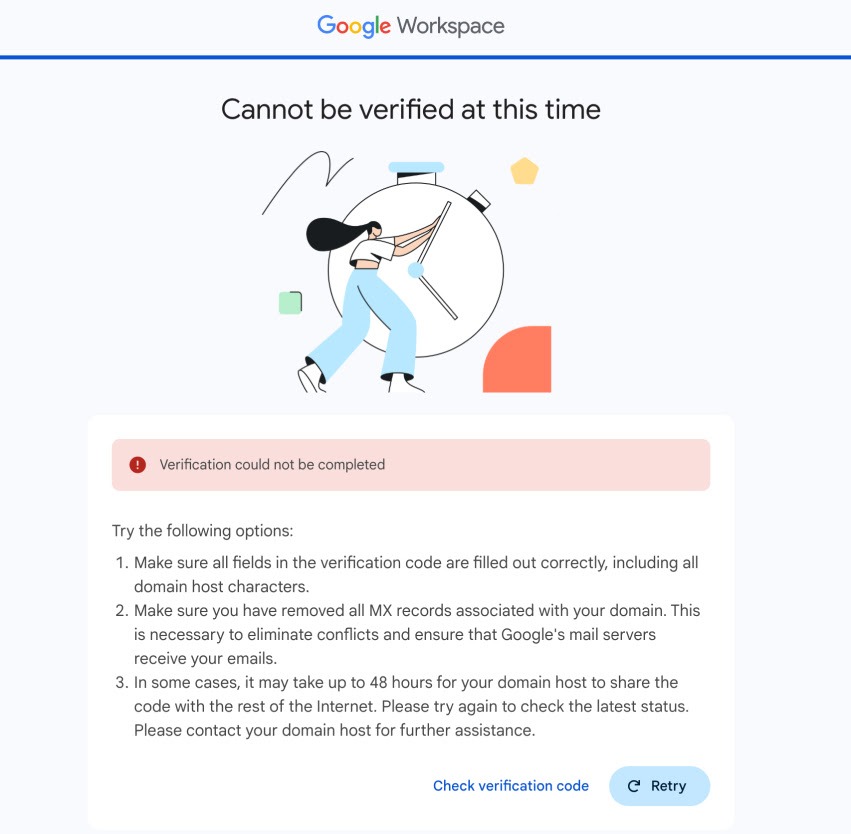
- Domain verification fails
- MX records appear correct but don’t work
- Google Workspace never receives emails
Always ensure DNS changes are made at the authoritative DNS provider.
Old MX Records vs Google Workspace MX Records
When migrating to Google Workspace, old MX records must be reviewed carefully.
Example of Old (Legacy) MX Records
These usually point to:
- Hosting email servers
- Zoho, Outlook, cPanel mail
If these remain:
- Emails continue going to the old system
- Or delivery becomes inconsistent
Google Workspace MX Records (Required)
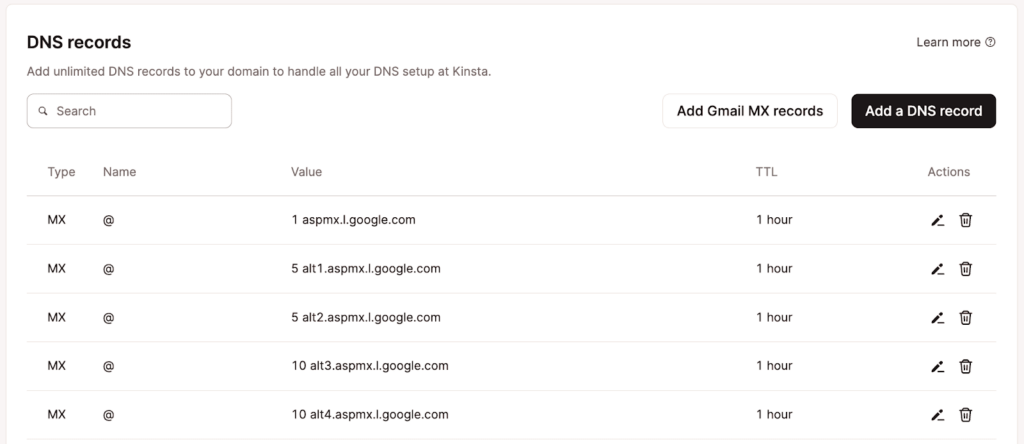
Google Workspace requires only Google MX records with correct priority.
Google officially publishes the required MX values in its Google Workspace Help Center. These records must be added exactly as provided by Google.
👉 ManagedInbox always verifies MX values against the official Google documentation before applying them.
Important Risk If You Already Have Email Elsewhere
If your domain already uses email on another system:
- Changing MX records will immediately route all new emails to Google Workspace
- If users are not created in Workspace yet, emails will:
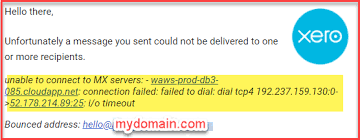
- Bounce
- Or be rejected by Google
That’s why email migration and user creation must happen before MX changes.
This step is commonly missed in DIY setups.
Why SPF, DKIM & DMARC Matter After MX Setup
Even with correct MX records, emails may:
- Go to spam
- Be rejected by recipient servers
This happens when:
- SPF is missing or incorrect
- DKIM is not enabled
- DMARC is not aligned
ManagedInbox configures all three to ensure:
- Inbox delivery
- Email security
- Domain reputation protection
How ManagedInbox Fixes MX Record Issues Professionally
1. DNS & Email Environment Check
We verify:
- Where DNS is actually hosted
- Existing MX, SPF, DKIM, DMARC records
- Whether legacy email is still active
2. Safe MX Change Planning
Before any DNS change:
- Workspace users are created
- Emails are migrated (if required)
- MX updates are made at the correct DNS provider.
3. Authentication & Testing
ManagedInbox configures:
- SPF, DKIM, DMARC
- Tests inbound and outbound email
- Confirms status inside Google Admin
No guessing. Everything is validated.
Emails Not Reaching Gmail?
Incorrect MX or DNS changes can silently drop or bounce business emails.
Let ManagedInbox:
- Identify the correct DNS provider
- Remove old MX records safely
- Apply official Google MX records
- Configure SPF, DKIM & DMARC
Frequently Asked Questions
Why does MX look correct but email still fails?
DNS may be updated at the wrong provider.
Should old MX records be removed immediately?
Only after migration and user setup are complete.
Where can I verify Google’s official MX records?
In the Google Workspace Help Center (official Google documentation).
How long does MX propagation take?
Usually minutes to a few hours, sometimes up to 24 hours.
